Chapter 6 - REANALYZING WAVEFORM DATA WITH THE LTP PROGRAM
Although this version of the program, LTP222A, does a reasonably good job of doing accurate on-line amplitude and slope analysis, experience in our group has indicated that subsequent off-line analysis can often improve the analysis accuracy. Doing Reanalysis with the LTP program is like reliving the experiment in ‘fast forward’ mode without any interruptions between ADsweeps.
To use the LTP program for off-line reanalysis, either repeat the procedure for going to the MS-DOS Mode of Windows 95/98 (Section 2.4.1.1), the ‘Real’ Command Line DOS with Windows 3.xx (Section 2.4.3), or use a Win95/98 desktop acquisition icon (Section 2.4.1.2).
Alternatively, run renalysis directly from the Windows GUI by going to the DOS compatibility box and running the program (see Section 2.4.2 for Windows 95/98, Section 2.4.4 for Windows 3.xx, Section 2.4.6 for Windows ME, and Section 2.4.8 for Windows NT/2000).
The only problem with reanalyzing in the DOS compatibility box is that because of a bug in Windows 3.xx/95/98/NT and 2000 DOS extender, Windows does not report the correct amount of memory available to the LTP program and therefore fewer ADsamples/sweep are loaded and analyzed. If LTP222A is run on a 64 MB Windows 95/98 computer in MS-DOS mode, 1,000,000 samples/sweep can be analyzed. However, if LTP222A is run on any Windows 3.xx/95/98/NT and 2000 computer in the DOS compatibility box, then only 50,000 samples/sweep will be analyzed.
|
Note: when analyzing ADsweep files acquired with a Pico 42 board, you no longer have to start it up the program in Reanalysis Mode with the Pico board on the command line, e.g.: |
| C:\LTP222A\980704\> ltp222a | is fine with LTP222A (was bad with LTP114J) | |
| but: | ||
| C:\LTP222A\980704\> ltp222a pico42_dio_1 | is not necessary with LTP222A | |
| C:\LTP222A\980704\> ltp222a pico42_1__dio_2 | is not necessary with LTP222A |
6.1
Reanalyze files from a CD-ROM
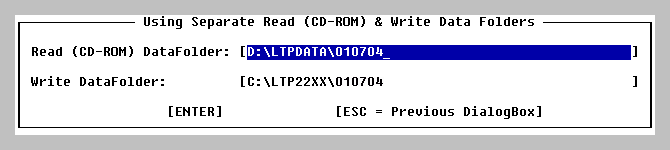
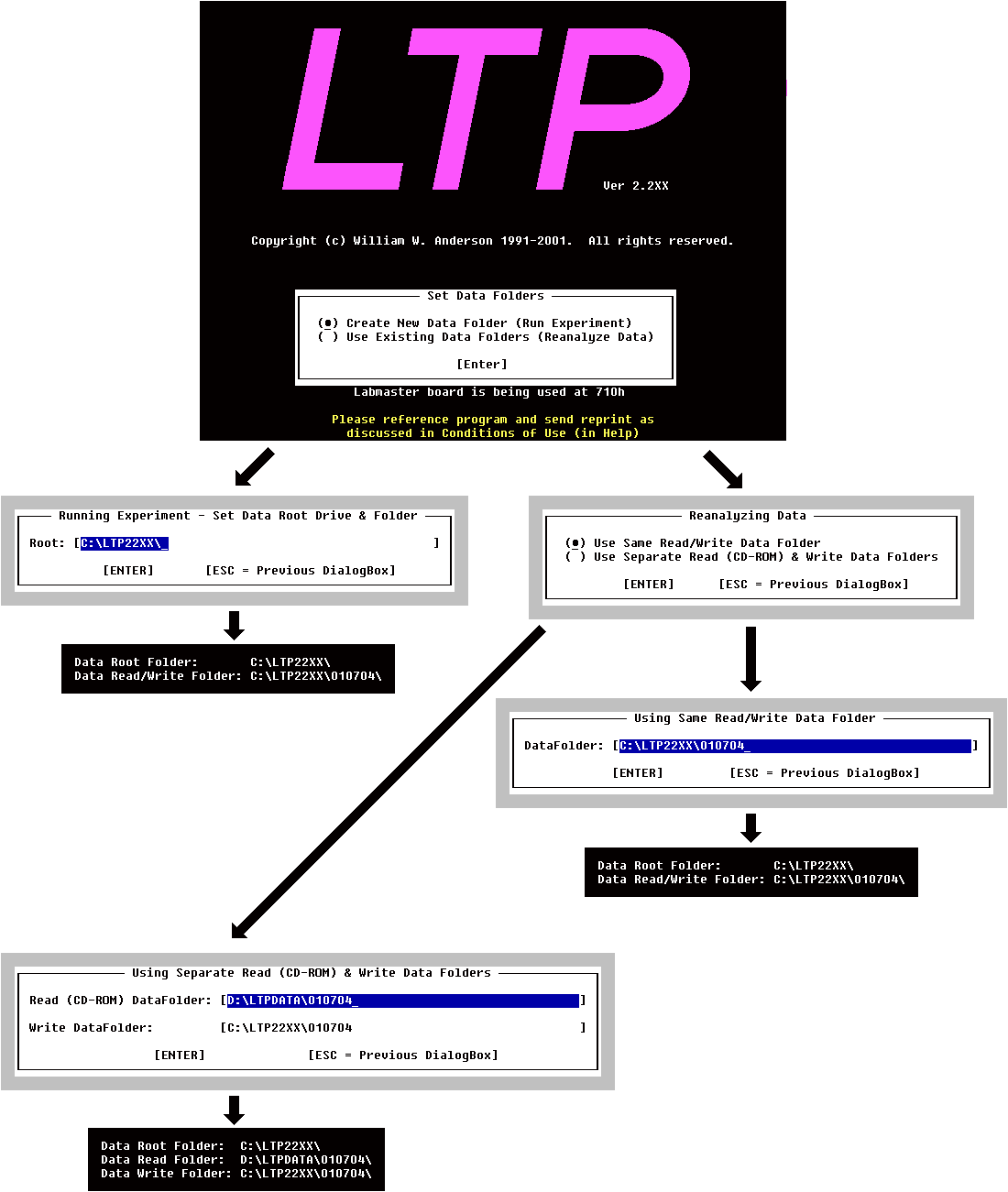
When starting the LTP Program for reanalysis, choose Use Existing Data Folders (Reanalyze Data) in the Set Data Folders dialog box in the splash screen (Fig. 6.1, top).
This calls up the Reanalyzing Data dialog box (Fig.6.1, next panel down on right) which allows you to either Use Same Read/Write Data Folder if reanalyzing ADsweep files from the hard drive, or Use Separate Read (CD-ROM) & Write Data Folders if reanalyzing ADsweep files that have been previously saved on a read-only CD-ROM. Because you cannot write the analysis (*.AMP) and LaserJet (*.LJ) files to the read-only data folder on the CD-ROM, a different Data Write folder on your hard disk must be chosen.
To do this another dialog box is presented,
Using Separate Read (CD-ROM) and Write Data Folders (Fig. 6.1, bottom
dialog box), which allows you to type in the Read (CD-ROM) Data Folder and
the Write Data Folder.
Fig. 6.1. The Dialog boxes encountered when starting the LTP Program to reanalyze data.
6.2 Change data folder during reanalysis
|
If you wish to change to a different data folder during reanalysis, bring up the Reanalysis Data dialog box (Fig. 6.3.4) by using the menu command (Fig. 3.4.3): |
| AmpFile -> Change data folder... |
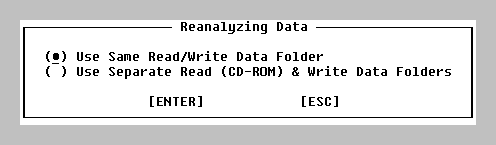 |
| Fig. 6.2.1. Reanalyzing Data dialog box. |
As with the Reanalyzing Data dialog box in Fig. 6.1, this Reanalyzing Data dialog box allows you to pick Use Same Read/Write Data Folder choice to present the Using Same Read/Write Data Folder dialog box in Fig 6.2.2. Changing this dialog box can set the Read/Write drive and data folder simultaneously and would be used to reanalyze data from a hard drive.
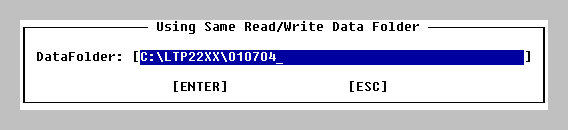 |
| Fig. 6.2.2. Using Save Read/Write Data Folder dialog box. |
Alternatively, choosing
Using Separate Read
(CD-ROM) & Write Data Folders in the Reanalyze Data dialog box
(Fig. 6.2.1) allows you to set the separate Read and
Write data drive and data folder by presenting the Using Separate Read
(CD-ROM) & Write Data Folders dialog box in Fig. 6.2.3.
Changing this dialog box can set the Read data drive and folder to say
D:\LTPDATA\010704 on the read-only CD-ROM, and the Write data drive and folder
to say C:\LTP22XX\010704 on the hard drive.
|
|
| Fig.6.2.3. Using Separate Read (CD-ROM) and Write Data Folders dialog box |
|
|
| Fig. 6.2.4.
After setting Separate Read (CD-ROM) and Write Data Folders. |
6.3 Reanalysis Using Simplified Menus and Dialog Boxes
In version 2 of the LTP Program, when the program is run in Reanalysis Mode, the menus and dialog boxes have been simplified to only provide the minimal information required.
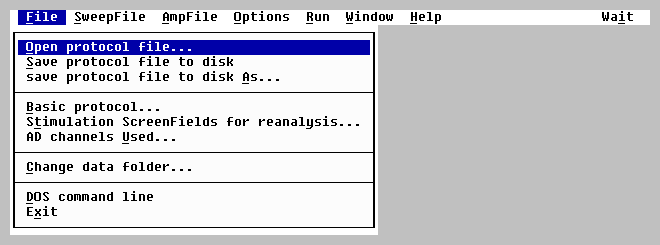
Thus the Protocol File menu in Reanalysis Mode (Fig. 6.3.1) the AutoCreate new data Folder... menu choice in the acquisition mode (Fig. 3.4.1) is not present because automatically creating new data folders only makes sense during acquisition. You can still create a new data folder during reanalysis using the Change data folder... menu choice, but you specifically have to write in a name for the new folder.
|
|
| Fig. 6.3.1. The simplified Protocol File menu available in Reanalysis Mode. |
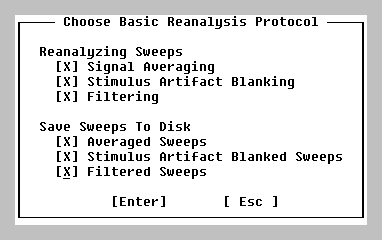
In the Reanalysis Mode, the Choose Basic Reanalysis Protocol dialog box (Fig. 6.3.2) is greatly simplified over the Choose Basic Online Protocol dialog box in acquisition mode (Fig. 4.2.1). The Slow Repetitive Sweep section is gone, because you only load ADsweep files to, and reanalyze in, the P0sweep (the reanalysis array). The Fast Repetitive LTD Stimulation section is absent, as is the Enable Train Sweeps section. Furthermore, the Signal Averaging, Stimulus Artifact Blanking, and Filtering are not done on Pulse or Train Sweeps but only on the Reanalyzing Sweeps loaded. Similarly, Raw Sweeps cannot be resaved (this wouldn't make any sense) and only the Averaged, Stimulus Artifact Blanked, and Filtered of the Reanalyzed Sweeps, not the Pulse or Train sweeps, can be saved to disk.
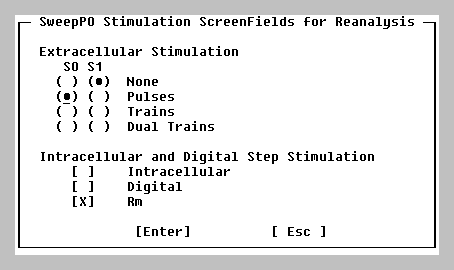
Furthermore, when doing reanalysis using the stimulation screen fields for the reanalysis stimulation information (see Section 6.4) and not the stimulation in the ADsweep file header (see Fig. 4.14.4.1), the simplified Stimulation dialog box shown in Fig. 6.3.3 is used. Since only the Sweep P0 array is loaded during reanalysis, there is no need to have the Sweep P1, T0 or T1 stimulation information present.
|
|
| Fig.6.3.3. The simplified Stimulation dialog box used in Reanalysis Mode |
|
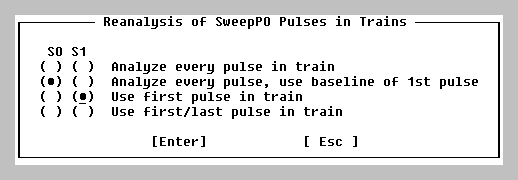
Similarly, when doing Reanalysis of Pulses in Trains, because ADsweep files are only loaded into the Sweep P0 array, it is not necessary to set this information for Sweeps P1, T0 or T1 as in the Analysis of Pulses in Trains dialog box (Fig. 4.9) used in the Acquisition Mode. To call up the Reanalysis of Trains dialog box, use the menu command (Fig. 3.4.3): |
| AmpFile -> Reanalysis of pulses in Trains |
to bring up the Reanalysis of SweepP0 Pulses in Trains dialog box (Fig. 6.3.4):
|
|
| Fig. 6.3.4. The simplified Reanalysis of Pulses in Trains dialog box used in Reanalysis Mode |
6.4 Source of Pulse Stimulation Information for Reanalysis
|
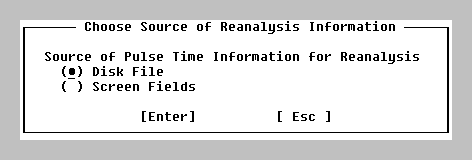
First one has to choose whether the time of the start of the S0, S1 or Rm pulse is taken from the disk file, or from the Pulse Stimulation Screen fields. Doing reanalysis in the same program that stimulates and acquires data has the added advantage of allowing one to use the Pulse Stimulation fields like a stimulus template and allows you to place the S0, S1 or Rm pulses at whatever time you want. To determine the source of the Pulse Stimulation information, use the menu command (Fig. 3.4.3): |
| AmpFile -> Reanalyze suing ScreenField or DiskFile information |
to bring up the Choose Source of Reanalysis information dialog box (Fig. 6.4):
|
|
|
Fig. 6.4. Dialog Box for Source of Reanalysis Pulse Stimulation Information. |
During on-line analysis the pulse time information contained in the Pulse Stimulation Screen Fields in the Pulse Stimulation Windows is used. During off-line Reanalysis, normally the pulse time information is obtained from the Disk File (the default).
However, if one wants to reanalyze with a different stimulation pattern, say only the second synaptic potential of a paired pulse stimulation, one can choose the Source of Pulse Time Information for Reanalysis to be the Screen Fields and set the PrePulseDur field in the Pulse Stimulation Window (Fig. 3.1.2) to the time at which this second pulse occurs. The second synaptic potential will correctly be analyzed relative to the time set in the at the PrePulseDur field.
6.5 Automatically Clear Current Reanalysis at Start of Next Reanalysis
| Sometimes you want to do then next reanalysis on the same calculation graph containing previously analyzed data points, and sometimes you want to do the next reanalysis on a new cleared calculation graph. This can be controlled by using the menu command (Fig. 3.4.3): |
| AmpFile -> AutoClear Amp/Slope graphs for next reanalysis… |
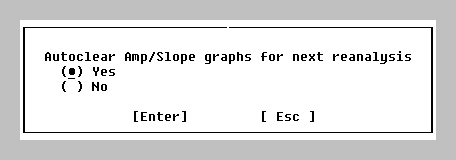
to call up and change the AutoClear Amp/Slope Dialog Box (Fig. 6.5).
|
|
|
Fig. 6.5. AutoClear Amp/Slope Graphs Dialog Box. |
If Yes is chosen, then doing the next reanalysis will not only clear the Amp/Slope Calculation graphs, but will also start a new Amplitude/Calculation (*.AMP) file.
If No is chosen, then doing the next reanalysis Amp/Slope calculation points will be superimposed on the points already present on the Amp/Slope Calculation graphs, and the new data points will be appended to the present Amplitude/Calculation (*.AMP) files.
|
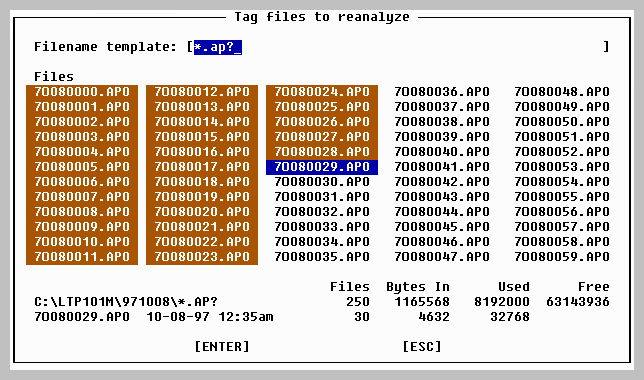
To reanalyze data use the pulldown menus and dialog boxes to choose those files you wish to reanalyze. Remember, every data file is 1 sweep (or 1 averaged sweep), so you can select only those sweeps you wish to reanalyze. To do this enter the menu command (Fig. 3.4.3): |
| AmpFile -> Reanalyze AD sweep files |
to enter the Reanalysis Dialog Box (Fig. 6.6).
| Then press: |
| TAB to go to the files to choose from. | |
| 't' to Tag those files for reanalysis (or Ctl-t to Tag all files) | |
| 'u' to Untag those files for reanalysis (or Ctl-u to Untag all files) | |
| finally Enter to begin the reanalysis. |
|
The analysis of the chosen ADsweep files will automatically go at an interval set by the |
| REANALYSIS |
| Sweep Repeat Period __s |
|
field value set in Miscellaneous Values Window (Fig. 3.1.6). |
Once analysis has begun, it can be temporarily halted anytime by pressing the SPACE bar. The detection values can be changed and that will change the calculation of the slope in the current ADsweep file. The ADsweep graph values can also be changed, and different Windows can be chosen.
Pressing the SPACE bar again will move to the next ADsweep so this will allow single stepping through all the ADsweeps and customizing each slope detection if need be. (However, it is less biased to have one detection setting for reanalyzing the whole experiment.)
Pressing F3 will resume or Continue the reanalysis at the normal Sweep Repeat Period.
Pressing F4 will Stop the Reanalysis.
Remember that during a reanalysis run, changing the detection parameters will change the amplitude/slope of last analyzed ADsweep, and will change that value in the Amp/Slope (*.AMP) file. Therefore if you are changing detection parameters ‘between’ reanalysis runs, do so on the first sweep of the next reanalysis run and not on the last ADsweep of the previous reanalysis run (e.g. supposedly ‘between’ reanalysis runs). Althernatively you can clear the calculation graphs before proceeding.
Also remember to increase the amplitude sensitivity as much as possible, and set AutoReset Timebase to Off to be able to zoom into the appropriate waveform times for a more accurate reanalysis (see Section 4.10).