Chapter 2 - GETTING
STARTED
2.1 Upgrade notice
If you are upgrading
from earlier versions of the LTP program, you will have write new *.pro protocol
files. The newer LTP222A program will not load protocol files you made using a
previous LTP program for reliability reasons.
Note that you can
analyze the same ADsweep files with LTP222A that were obtained with all earlier
versions of the LTP program.
2.2
Installing the LTP Program
2.2.1 Go
to the Explorer (in Windows 95/98) or File Manager (in Windows 3.x) and create
the folder \LTP222A on the appropriate drive (I will assume the C: drive for
this discussion). Then download the self-extracting zip file LTP222AZ.EXE from
the 'LTP' program web site, www.ltp-program.com.
Then
double click on the LTP222AZ.EXE file to extract the following files which
should now be in your \LTP222A folder:
The
main LTP222A files:
|
|
ltp222a.exe
|
|
|
(the main LTP program)
|
|
|
dos4gw.exe
|
|
|
(the 32-bit DOS extender � note that this version (2.01a, dated 3
April, 1996) is updated from the version used with LTP114J (version 1.97,
29 Feb. 1996). Delete the
older version in \LTP114J.
|
|
|
ltpvga.fon
|
|
|
(a font file required by the LTP program)
|
Additional
files for using desktop icon with Windows 95/98 (and Windows ME/NT/2000):
|
|
Ltp222a Aq Digidata
|
|
|
(to run the LTP program in acquisition mode when using the Digidata
1200 board)
|
|
|
Ltp222a Aq Labmaster
|
|
|
(to run the LTP program in acquisition mode when using the Labmaster
board)
|
|
|
Ltp222a Aq Pico LPT1
|
|
|
(to run the LTP program in acquisition mode when using the Pico-42
board and digital output on parallel port LPT1)
|
|
|
Ltp222a Aq Pico LPT2
|
|
|
(to run the LTP program in acquisition mode when using the Pico-42
board and digital output on parallel port LPT2)
|
|
|
Ltp222a Aq Pico LPT12
|
|
|
(to run the LTP program in acquisition mode when using the Pico-42
board on parallel port LPT1, and digital output on LPT2)
|
|
|
LtpAq.ico
|
|
|
(the icon for LTP acquisition)
|
|
|
LtpRean.ico
|
|
|
(the icon for LTP reanalysis)
|
2.2.2.
For Windows 95 or 98:
| Modify
the autoexec.bat file in the C:\ root folder by using NOTEPAD.EXE or other text
editor by adding C:\LTP222A; to your PATH line like this:
|
|
PATH=C:\LTP222A;
|
Because
LTP222A uses a newer DOS4GW.EXE 32-bit DOS extender that can access 64 MB of RAM
memory (version 2.01a, April 3,
1996), and replaces the older DOS4GW.EXE supplied with LTP114J which can access
only 32 MB of RAM memory (version 1.97, Feb. 29, 1996), delete the older
DOS4GW.EXE in the \LTP114J folder. Also,
remove C:\LTP114J; from the PATH statement in the autoexec.bat.
To
implement the changes made to the autoexec.bat file you must first reboot the
computer by clicking on 'Start', then 'Shut Down', and then
'Restart the computer'.
2.2.3.
For MS-DOS 6.0/6.2 (with Windows 3.0/3.1/3.11):
| Modify
the autoexec.bat file in the C:\ root folder by using EDIT.COM, NOTEPAD.EXE or
other text editor by adding C:\LTP; to your PATH line like this:
|
| PATH=C:\DOS;C:\WINDOWS;C:\LTP222A;
|
Because
LTP222A uses a newer DOS4GW.EXE 32-bit DOS extender that can access 64 MB of RAM
memory (version 2.01a, April 3,
1996), and replaces the older DOS4GW.EXE supplied with LTP114J which can access
only 32 MB of RAM memory (version 1.97, Feb. 29, 1996), delete the older
DOS4GW.EXE in the \LTP114J folder. Also,
remove C:\LTP114J; from the PATH statement in the autoexec.bat.
| If
faster saving of data is required (forinstance for saving AD waveforms during
fast 2Hz LTD stimulation) you may try removing the /X flag following SMARTDRV in
the config.sys or autoexec.bat files located in the C:\ root folder. (This does
not speed up saving on all computers. For example, this sped up saving AD sweep
files faster on a Dell 486/66MHz, but not on a Dell Pentium/60 MHz.) In the
config.sys file:
|
| DEVICE =
C:\WINDOWS\SMARTDRV /X
|
| becomes
|
| DEVICE =
C:\WINDOWS\SMARTDRV
|
| Or,
in the autoexec.bat file:
|
|
C:\WINDOWS\SMARTDRV.EXE /X
|
| becomes
|
|
C:\WINDOWS\SMARTDRV.EXE
|
To
implement the changes made to the config.sys and autoexec.bat files you must
first reboot the computer by pressing CTL-ALT-DEL, pressing the reboot button,
or by turning OFF then turning ON the power again.
2.2.4.
For Windows ME:
Same
as for Windows 95/98.
2.2.5.
For Windows NT or 2000:
Same
as for Windows 95/98.
2.2.6.
Check For Correct Memory Manager, HIMEM.SYS
If you are using DOS 6.x / Windows 3.x, you should have
HIMEM.SYS is in your AUTOEXEC.BAT and not another memory manager
like QEMM.SYS or 386MAX.SYS. The normal installation of DOS
6.x / Windows 3.x automatically installs HIMEM.SYS. Similarly, if
you are using Windows 95/98 HIMEM.SYS does not have to be in your
AUTOEXEC.BAT - it automatically used. However, you should make
sure that another memory manager like QEMM.SYS or 386MAX.SYS is
not in your AUTOEXEC.BAT. (It is possible that other memory
managers such has QEMM.SYS, 386MAX.SYS may work fine, but I have
not tried them and therefore will not recommend them. Only use
them if you are 100% sure they are working correctly.)
The reason for being careful about what memory manager to use
is the following. The LTP222A program uses a DPMI (DOS Protected
Mode Interface) host which helps the LTP program talk to the
computer hardware. If the HIMEM.SYS memory manager is used with
the LTP program, then the DPMI host is the Watcom C / Tenberry's
DOS/4GW DPMI host. This is a well defined DPMI host which works
well in real-time, and has been well tested by me.
DPMI hosts can be either 'real' or 'virtual'. When the DPMI
host is 'real', the DOS program has complete control of
the machine. When HIMEM.SYS and Watcom C / Tenberry's DOS/4GW are
used, the DPMI host is 'real', and when the LTP222A program
blocks keyboard, disk drive, or network card interrupts during
data acquisition and stimulation, they are really blocked and there
are no delays!!!!
Some DPMI hosts can be 'virtual' DPMI hosts meaning that the
DOS program does not have complete control of the machine. With a
'virtual' DPMI host, the keyboard and disk drive interrupts
appear blocked to the DOS LTP222A program but they are not
actually blocked in the computer - and therefore substantial
delays of 1 msec or longer can occur during
acquisition/stimulation and your synaptic potential would appear
much shorter.
Therefore, be sure you are using HIMEM.SYS, and test for
any delays during the data acquisition / stimulation sweep by
using a triangular waveform input (as described in Section
2.9.1). Also test the sample-to-sample jitter by measuring the
width of a train S0 pulse using an oscilloscope (see Section
2.9.2).
2.3 Installing the
Data Acquisition Board
The LTP222A program presently runs on three data acquisition
boards: the Axon Instruments Digidata 1200 board, the
Scientific Solutions Labmaster board, and the Pico Technology
42-ADC board.
2.3.1 Axon Instruments Digidata 1200 Board
The Digidata 1200 board is one of the most popular data acquisition
boards for neurophysiology, almost solely due to its use by the
Axon Instruments program pClamp. The Digidata board comes
with its own interface. LTP222A uses two
analog input channel AnalogIn0 and AnalogIn1, two analog output channels
AnalogOut0 and AnalogOut1, and four digital output channels
DigitalOut0, DigitalOut1, DigitalOut2, and DigitalOut3.
| The factory settings for the Digidata board base address (320
hexadecimal) will normally be used. If so, the LTP program
will be started by the command line: |
| C:\YOURDATA\010704\> ltp222a |
| However, if you need to use the Digidata board at a
non-default base address, enter the following command line (for
example at a base address of 100 hexadecimal): |
| C:\YOURDATA\010704\> ltp222a 100 |
|
| For an LTP experiment with one or two recording electrodes
(extracellular and/or intracellular), intracellular (IC) stimulation
through one recording electrode (if applicable) and two
extracellular stimulating electrodes (S0 and S1), connect the
recording electrode amplifier and Stimulation Isolation Units
(SIUs) as shown in the Digidata Electrode Connections Help Box
(Fig. 2.3.1). This information can be viewed in the LTP program
by using the menu command: |
| Help -> Electrode<->AD
board Connections |
|
|
| Fig. 2.3.1. Digidata Electrode Connections Help Box. |
Presently, the Digidata board is programmed using the slower
Software controlled acquisition and stimulation, and therefore
does not run on some of the slowest computers (e.g. a Tandon 16
MHz 386) but does work on faster computers (e.g. a Tandon 25 MHz
486 and above). With Software controlled acquisition there is
also some Analog input and Analog/Digital output sample-to-sample
jitter on the order of 2-7 usec. For timing errors in
sample-to-sample jitter and sweep-to-sweep jitter with the
Digidata board, see APPENDIX
B.4 and APPENDIX
B.6, respectively.
2.3.2 Scientific Solutions Labmaster Board
The Scientific Solutions Labmaster data acquisition board in
the past been one of the most commonly used AD boards in
neurophysiology, again due in part to its use by the Axon
Instruments program pClamp. The Scientific Solutions Labmaster
board was also previously marketed by Axon Instruments, and Axon
Instruments also previously sold their own interface unit for the
Labmaster board, the Axon Instruments TL-1 interface. The
electrode <-> interface connections for the LTP program are
based on this TL-1 interface. LTP222A uses two
analog input channels (physical AD channel AD15 for logical AD channel AD0,
physical channel AD14 for logical channel AD1), two analog output channels DA0
and DA1, and four digital output channels C4, C5, C6 and C7. The input channels
(AD15 and 14), and the
output channels (DA0, DA1, Ports C4, C5, C6 and C7) are those commonly
used by the Axon Instruments program pClamp 6, and the LTP222A
program will automatically work on a computer set up to use
pClamp 6.
| Because the LTP222A program cannot automatically detect if a
Labmaster board is installed (as it can do for a Digidata board),
an additional word 'labmaster' must be added to the command line
when LTP222A is started in order to use the Labmaster board. The
factory settings for the Labmaster board base address (710
hexadecimal) will normally be used. If so, the LTP program
will be started by the command line: |
| C:\YOURDATA\010704\> ltp222a labmaster |
| However, if you need to use the Labmaster board at a
non-default base address, enter the following command line (for
example at a base address of 100 hexadecimal): |
| C:\YOURDATA\010704\> ltp222a labmaster 100 |
| For an LTP experiment with one or two recording electrodes
(extracellular and/or intracellular), intracellular (IC) stimulation
through one recording electrode (if applicable) and two
extracellular stimulating electrodes (S0 and S1), connect the
recording electrode amplifier and SIUs to the Axon TL-1 interface
as shown in the Labmaster Electrode Connections Help Box (Fig. 2.3.2). This information can be viewed in the LTP program by
using the menu command: |
| Help -> Electrode<->AD
board Connections |
|
| Fig. 2.3.2. Labmaster Electrode Connections Help Box. |
For timing errors in Analog input and Analog/Digital output
sample-to-sample jitter (on the order of 2-4 usec) and
sweep-to-sweep jitter with the Labmaster board, see APPENDIX
B.4 and APPENDIX
B.6, respectively.
2.3.3 Pico Technology's ADC-42 Board
I wanted to have the LTP program also work with a low cost
data acquisition board. At present, the cost an AD board can be
twice the cost of a completely adequate Pentium computer. The
Pico ADC-42 board is a very low cost (ca. �85 / $155) 12-bit AD
'board'. It plugs into a parallel printer port and acquires data
on one AD channel. Digital output can either come from the same
printer port or a second printer port (which can be separately
purchased for ca. �10). Sometimes the second printer port is
necessary because they often have greater digital current output
which may be necessary for triggering some SIUs. The Pico board (which has an
accuracy of +1%) is perfectly adequate for extracellular experiments.
|
Because the LTP222A program cannot automatically detect if a
Pico board is attached (as it can for the Digidata board), an
additional word must be added to the command line when LTP222A is
started in order to use the Pico board. If the Pico ADC-42 board
is attached to the LPT1 printer port and digital output is also
through LPT1 use the following command:
|
| |
C:\YOURDATA\010704\> ltp222a pico42_dio_1
|
|
Alternatively, if using the LPT2 or LPT3 port instead of the
LPT1 port use one of the following commands:
|
| |
C:\YOURDATA\010704\> ltp222a pico42_dio_2 |
| |
C:\YOURDATA\010704\> ltp222a pico42_dio_3 |
|
If the Pico ADC-42 board is attached to the LPT1 port and
digital output is through the LPT2 port, use the following command:
|
| |
C:\YOURDATA\010704\> ltp222a pico42_1__dio_2
|
|
Alternatively, if the Pico ADC-42 board is attached to the
LPT2 port and digital output is through the LPT3 port, use the
following command:
|
| |
C:\YOURDATA\010704\> ltp222a pico42_2__dio_3
|
| Note that for reanalysis of ADsweep files taken with
the Pico board, you no longer need to start LTP222A in reanalysis mode.
This 'feature' of LTP114J (and earlier) has been fixed. |
| C:\LTP222A\010704\>
ltp222a pico42_dio_1 |
|
(Fine for reanalysis using LTP222A) |
| but |
|
|
| C:\LTP222A\010704\>
ltp222a pico42_dio_1 |
|
(no longer necessary for Pico data reanalysis) |
| C:\LTP222A\010704\>
ltp222a pico42_1__dio_2 |
|
(no longer necessary for Pico data reanalysis) |
|
If you are using the Pico board, it is good to put these
commands into a batch file (say LTP.BAT) in the C:\LTP222A
directory, and always call the LTP222A program from the batch
file.
| For an LTP experiment with one recording electrode
(extracellular or intracellular), intracellular (IC) stimulation
through the recording electrode (if applicable) and two
extracellular stimulating electrodes (S0 and S1), connect the
recording electrode amplifier and SIUs to Pico42 board on LPT1
and digital output through LTP1 as shown in the Pico ADC-42 / One
Port Electrode Connections Help Box (Fig. 2.3.3.1). This
information can be viewed in the LTP program by using the menu
command: |
| Help -> Electrode<->AD
board Connections |
|
| Fig. 2.3.3.1 Pico42 Electrode Connections Help Box (using one
printer port). |
Use Pin 18 (chassis Ground) if you want to ground coaxial
shielding. The wire connections are shown schematically in Fig. 2.3.3.2, and a picture of the Pico-42 ADC board and digital output
using the LPT1 parallel port on a laptop computer is shown in
Fig. 2.3.3.3.
|
|
| Fig. 2.3.3.2. Ribbon cable connections for Pico board and
Digital Output for connection to one parallel port. |
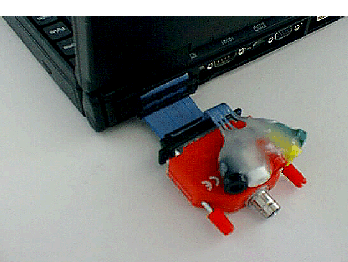 |
| Fig. 2.3.3.3. Photo of the Pico ADC-42 connected to the parallel
port of a laptop computer by a ribbon cable and two DB-25 plugs.
The parallel port also produces four digital outputs (Right to
Left - Green/Right plug, Wire 1, DigitalOut0; Yellow plug, Wire
2, S0; Red plug, Wire 6, S1; White plug, Wire 8, IC) and a ground
to the parallel port (Black/Left plug, Wire 10, GND). |
For an LTP experiment with the Pico ADC-42 board connected to
LPT1 and digital output through LPT2, connect the electrodes as
shown in the Pico42 / Two Port Electrode Connections Help Box
(Fig. 2.3.3.4).
|
|
| Fig. 2.3.3.4. Pico ADC-42 Electrode Connections Help Box (using
two printer ports). |
Use Pin 18 (chassis Ground) if you want to ground coaxial
shielding. The wire connections are shown schematically in Fig. 2.3.3.5 for the connections of the digital output from the second
of two parallel ports.
|
|
| Fig. 2.3.3.5. Ribbon cable connections for the Digital Output
from the second of two parallel ports. |
There are two potential problems with the Pico ADC-42 board.
First, is your computer fast enough? When the LTP program is
started it will automatically determine if the computer is too
slow for the Pico board, (for example by running ltp222a
pico42_dio_1 as described above). If the computer is too
slow, the program will terminate (see APPENDIX
B.10). You can
even test this without the Pico board being installed. This is
because the speed of the acquisition is determined by how fast
the data can be read from the parallel port (one bit at a time!),
and the Pico board does not actually have to be installed to do
this. Pico board AD conversion is always complete within 100
usec.
The second potential problem with using the Pico ADC-42 board
is: Are the parallel port digital outputs capable of triggering a
SIU? We've found that LPT1 has difficulty triggering our Neurolog
SIUs, but LPT2 output will trigger them. Again you can test this
digital output capability without having to have the Pico board
installed.
If you want to use the Pico board with the LPT1 parallel port
and it does not have enough current output to trigger your SIUs,
you could interface to a TTL chip for amplification.
Alternatively, you could use four 4.7 Kohm pull-up resistors
connected to a 5 volt source - read the Web document
"Interfacing the Parallel Port" at
www.senet.com.au/~cpeacock/parallel.htm#2 - although like they
say, you do so at your own risk.
Finally, according to the Pico Technology, the accuracy of the
Pico ADC-42 board is about +1%. Because of this we
presently use the Pico ADC-42 board only for extracellular LTP
experiments, although, if you calibrated your system and you were
sure the board was within your accuracy requirements, you could
use the board for intracellular recording and patch clamping.
Also note that the input voltage range on the Pico board is -5
to +5 volts (in contrast to the -10 to 10 volts on the Labmaster
and Digidata board). For timing errors in Analog input and
Digital output sample-to-sample jitter (on the order of 2-5 usec)
and sweep-to-sweep jitter with the Pico board and printer port, see APPENDIX
B.4 and APPENDIX
B.6, respectively.
Finally, note that the fastest the Pico board can do repeat
ADsweep (LTD) stimulation is 1.0 Hz (see APPENDIX
B.5).
The Pico ADC-42 board was my first try using a very low cost
AD board with the LTP program.
2.4
Starting the LTP Program
The
starting of the LTP222A program has drastically changed from the earlier LTP114J
version primarily due to automatic creation of data folders during program
startup. You no longer have to:
1) manually create a data folder, 2) move to that data folder, and 3) start the
LTP program from that data folder, as you had to with LTP114J.
2.4.1
Windows 95/98 Acquisition
The
LTP program will run on-line in only the MS-DOS Mode of Windows 95 or 98.
LTP222A can be started either by first going into the MS-DOS Mode and
then starting LTP222A from the DOS command line (as was previously done with
LTP114J), or LTP can now be started by clicking on one of the supplied desktop
acquisition icons.
2.4.1.1
Starting Acquisition in the Windows 95/98 MS-DOS Mode
To
put the computer into the MS-DOS Mode
(DOS 7.0), click the 'Start' button, then click the 'Shut
Down' button and click 'Restart the computer in MS-DOS mode'.
Do not click on the MS-DOS icon in Windows 95/98 because this will merely go to
the DOS Compatibility Box. The MS-DOS Mode in Windows 95/98 is not
equivalent to the DOS in the DOS Compatibility Box in Windows 95/98.
Alternatively
during the boot-up process on computers using Windows 95/98, just after the
'Starting Windows 95' or 'Starting Windows 98' line comes up and the computer
beeps, press F8 to go directly into the Windows 95/98 Startup Menu, then
enter 6 for the 'Command prompt only'. This bypasses the need to go into the
Windows 95/98 GUI and then down into the MS-DOS Mode. (After exiting the LTP
program type C:>\ win to enter the Windows 95/98 GUI. If this
seems a bit
like Windows 3.x and "deja vu all over again", it is.)
The
LTP222A program can now be started from within ANY folder, in contrast to
LTP114J (and it doesn�t have to be the
root folder used here).
|
If using the Digidata board:
|
|
or if using the Digidata board at a non-default hexadecimal base
address:
|
|
or if using the Labmaster board:
|
|
or if using the Labmaster board at a non-default hexadecimal base
address:
|
|
|
C:\> ltp222a labmaster 100
|
|
or if using a Pico ADC-42 board attached to LPT1 and digital output is
also through LPT1 (or LPT2 or LPT3):
|
|
|
C:\> ltp222a pico42_dio_1
|
|
|
C:\> ltp222a pico42_dio_2
|
|
|
C:\> ltp222a pico42_dio_3
|
|
or if using a Pico ADC-42 board attached to LPT1 and digital output is
through LPT2 (or LPT2 and LPT3):
|
|
|
C:\> ltp222a pico42_1__dio_2
|
|
|
C:\> ltp222a pico42_2__dio_3
|
When
the LTP program starts up, it automatically determines if the computer is too
slow for the chosen data acquisition board, in which case it terminates.
However, after this initial 'speedtest' the LTP program does not again check if
the computer is fast enough for the data acquisition board. This means that if
there was a microprocessor slowdown (which could occur if the microprocessor
when into a power saving mode on a laptop computer, or if the 'Turbo'
speed was inadvertently turned off), a 100 msec sweep would actually take twice
as long (200 msec) in real time. This would mean that a 10 msec duration EPSP
would actually appear having a 5 msec duration on the ADsweep graph, and the
slope would appear twice as large. If the synaptic potential duration or
slope immediately and inexplicably changes by a factor of two, check that the
synaptic potential duration is right by independently measuring it with an
oscilloscope. Alternatively, if an oscilloscope is not available, restart the
LTP program to test the data acquisition board speed again.
All
single AD waveform files (*.P0, *. BP0, *.FP0, *.AP0, *.LP0 and *.IP0 etc), all Amplitude/Calculation files (*.AMP), and all
LaserJet print files (*.LJ) will be stored in this C:\YOURDATA\010704 start-up
folder. All initialization (*.INI) and protocol (*.PRO) files will be stored in
the program folder C:\LTP222A.
2.4.1.2
Starting Acquisition in Windows 95/98 by clicking on a desktop icon
LTP222A
can also be started by clicking on one of the supplied desktop acquisition icons
shown below.

Clicking
on these icons calls up their associated PIF (Program Information File) file,
automatically enters the MS-DOS mode, starts up the LTP Program to automatically
acquire data from the Digidata 1200, Labmaster or Pico ADC-42 boards.
When the LTP program is exited, the computer automatically re-enters
Windows 95 or 98.
The
PIF files can be altered by right clicking on the desktop icon, bringing up the
Properties dialog box, clicking the Program tab, and changing the command line
argument in �Cmd line�. For
example, if the Digidata 1200 board is located at 100H rather than the factory
default 320H, the Cmd line would be changed from:
C:\LTP222A\LTP222A.EXE
to:
C:\LTP222A\LTP222A.EXE 100
For
another example, if
the Pico board used LPT3 for the location of the Pico board and the digital output, then the Cmd line would be changed from:
C:\LTP222A\LTP222A.EXE pico42_dio_2
to:
C:\LTP222A\LTP222A.EXE pico42_dio_3
and
you would change the name of the PIF file and the name of the desktop icon
accordingly.
2.4.2
Windows 95/98 Reanalysis
You
can start LTP222A program reanalysis by:
1)
Go to the Windows Explorer and click on the ltp222a.exe file to run the program
in an DOS box.
2)
Click the MS-DOS prompt to go to the DOS box command line, and from any folder
type in:
C:\>
ltp222a
3)
Click the supplied desktop reanalysis icon shown below.

Due
to a fault in the Windows 95/98 DOS extender, the LTP program doesn�t know how
much RAM memory is available, only if it is too little in which case the program
exits. Therefore, in reanalysis
mode in the DOS box of Window 95/98, the number of samples/sweep has been
limited to 50,000. If you need more
samples/sweep during reanalysis, run the LTP program in the MS-DOS mode, and
use:
C:\LTP222A
reanalysis_msdosmode
if
your computer has a Digidata board installed (which would otherwise be automatically detected
and will send the LTP program into acquisition mode).
2.4.3
MS-DOS 6.x / Windows 3.xx
Acquisition
The
LTP program will acquire data only when started in the 'Real' Command Line
DOS mode. To enter this
mode, just start the computer and don't go into Windows (e.g. do not type C:>win).
If you are already in Windows 3.x, exit Windows completely (File->Exit)
and return back to 'Real' Command Line DOS.
Don't click on the MS-DOS icon in Windows 3.x because this will merely go
to the DOS Compatibility Box. 'Real' Command Line DOS is not
equivalent to the DOS in the DOS Compatibility Box in Windows.
The
LTP222A program can
now be started from within ANY folder, in contrast to LTP114J (and it doesn�t have to be the
root folder used here).
|
If using the Digidata board:
|
|
or if using the Digidata board at a non-default hexadecimal base
address:
|
|
or if using the Labmaster board:
|
|
or if using the Labmaster board at a non-default hexadecimal base
address:
|
|
|
C:\> ltp222a labmaster 100
|
|
or if using a Pico ADC-42 board attached to LPT1 and digital output is
also through LPT1 (or LPT2 or LPT3):
|
|
|
C:\> ltp222a pico42_dio_1
|
|
|
C:\> ltp222a pico42_dio_2
|
|
|
C:\> ltp222a pico42_dio_3
|
|
or if using a Pico ADC-42 board attached to LPT1 and digital output is
through LPT2 (or LPT2 and LPT3):
|
|
|
|
|
C:\> ltp222a pico42_1__dio_2
|
|
|
|
|
C:\> ltp222a pico42_2__dio_3
|
When
the LTP program starts up, it automatically determines if the computer is too
slow for the chosen data acquisition board, in which case it terminates.
However, after this initial 'speedtest' the LTP program does not again check if
the computer is fast enough for the data acquisition board. This means that if
there was a microprocessor slowdown (which could occur if the microprocessor
when into a power saving mode on a laptop computer, or if the 'Turbo'
speed was inadvertently turned off), a 100 msec sweep would actually take twice
as long (200 msec) in real time. This would mean that a 10 msec duration EPSP
would actually appear having a 5 msec duration on the ADsweep graph, and the
slope would appear twice as large. If the synaptic potential duration or
slope immediately and inexplicably changes by a factor of two, check that the
synaptic potential duration is right by independently measuring it with an
oscilloscope. Alternatively, if an oscilloscope is not available, restart the
LTP program to test the data acquisition board speed again.
All
single AD waveform files (*.P0, *. BP0, *.FP0, *.AP0, *.LP0 and *.IP0 etc), all Amplitude/Calculation files (*.AMP), and all
LaserJet print files (*.LJ) will be stored in this C:\YOURDATA\010704 start-up
folder. All initialization (*.INI) and protocol (*.PRO) files will be stored in
the program folder C:\LTP222A.
2.4.4
MS-DOS 6.x / Windows 3.x
Reanalysis
Just
go to the File Manager and click on the ltp222a.exe file to run the program in
an DOS box.
Alternatively,
click the MS-DOS prompt to go to the DOS box command line, and from any folder
type in:
C:\>
ltp222a
Due
to a fault in the Windows 3.xx DOS extender, the LTP program doesn�t know how
much RAM memory is available, only if it is too little in which case the program
exits. Therefore, in reanalysis
mode in the DOS box of Window 95/98, the number of samples/sweep has been
limited to 20,000. If you need more
samples/sweep during reanalysis, run the LTP program from the command line in
Real DOS and use:
C:\LTP222A
reanalysis_msdosmode
if
your computer has a Digidata board installed (which would otherwise be automatically detected
and will send the LTP program into acquisition mode).
2.4.5
Windows ME Acquisition
LTP222A can only be used in acquisition mode if the computer is booted up
into DOS 6.x or DOS 7.0. Windows ME is similar to Window 95/98 with the
exception that it has no MS-DOS (real DOS) mode (which is too bad because that
is what LTP222A uses in the acquisition mode).
Remember that using LTP222A for
acquisition also requires the Windows ME computer to have an ISA bus (although
the Pico ADC-42 board may work without it).
However, a computer
using Windows ME can be booted up into DOS 7.0. The simplest thing
to do is to format a 1.44 MB floppy disk in a Windows 98 computer (C:\format a:
/s from the DOS command line). Put
the floppy disk into the A: drive of the Windows ME computer, and
start the computer. For these
computers, if the computer starts up with a disk in floppy drive A: that has
been formatted with DOS 7.0 (e.g. in a Windows
98 computer), then the operating system used to format that floppy (DOS 7.0 of
Windows 98) will be the operating system that the computer with Windows ME installed actually will run in. In other words, putting
in a floppy disk formatted in a DOS 7.0 (Windows98) computer causes the Windows
ME computer to become a DOS 7.0 (Windows 98) computer.
Alternatively, you can
use a program such as Partition Magic to
install a dual boot system on the Windows ME computer and boot up into a DOS 6.x
or 7.0 partition
2.4.6
Windows ME Reanalysis
You
can start LTP222A program reanalysis by:
1)
Go to the Windows Explorer and click on the ltp222a.exe file to run the program
in an DOS box.
2)
Click the MS-DOS prompt to go to the DOS box command line, and from any folder
type in:
C:\>
ltp222a
3)
Click the supplied desktop reanalysis icon (for Windows 98) shown below.
Due
to a fault in the Windows ME DOS extender, the LTP program doesn�t know how
much RAM memory is available, only if it is too little in which case the program
exits. Therefore, in reanalysis
mode in the DOS box of Window 95/98, the number of samples/sweep has been
limited to 50,000. If you need more
samples/sweep during reanalysis, restart the computer in DOS 7.0 (MS-DOS mode),
run the LTP program in the MS-DOS mode, and
use:
C:\LTP222A
reanalysis_msdosmode
if
your computer has a Digidata board installed (which would otherwise be automatically detected
and will send the LTP program into acquisition mode).
2.4.7
Windows NT or 2000 Acquisition
LTP222A can only be used in acquisition mode if the computer is booted up
into DOS 6.x or 7.0. And because DOS 6.x requires FAT and DOS 7.0 requires
FAT or FAT32 file systems, at least one hard disk partition in the Window NT or
2000 computer requires a FAT or FAT32 file system. If NTFS is
the only file system being used,
convert it to FAT (or better yet) FAT32 using a program such as Partition Magic 6.
Remember that using LTP222A for
acquisition also requires the Windows NT/2000 computer to have an ISA bus
(although the Pico ADC-42 board may work without it).
Then the simplest thing
to do is to format a 1.44 MB floppy disk in a Windows 98 computer (C:\format a:
/s from the DOS command line). Put
the floppy disk into the A: drive of the Windows NT or 2000 computer, and
start the computer. For these
computers, if the computer starts up with a disk in floppy drive A: that has
been formatted with DOS 7.0 (e.g. in a Windows
98 computer), then the operating system used to format that floppy (DOS 7.0 of
Windows 98) will be the operating system that the computer with Windows NT
or 2000 installed actually will run in.
In other words, putting
in a floppy disk formatted in a DOS 7.0 (Windows98) computer causes the Windows
NT/2000 computer to become a DOS 7.0 (Windows 98) computer.
Alternatively, you can
use a program such as Partition Magic to
install a dual boot system on the Windows NT/2000 computer and boot up into a DOS
6.x or 7.0 partition
2.4.8
Windows NT or 2000 Reanalysis
You
can start LTP222A program reanalysis by:
1)
Go to the Windows Explorer and click on the ltp222a.exe file to run the program
in an DOS box.
2)
Click the MS-DOS prompt to go to the DOS box command line, and from any folder
type in:
C:\>
ltp222a
3)
Click the supplied desktop reanalysis icon shown below.

Due
to a fault in the Windows 2000 DOS extender, the LTP program doesn�t know how
much RAM memory is available, only if it is too little in which case the program
exits. Therefore, in reanalysis
mode in the DOS box of Window 95/98, the number of samples/sweep has been
limited to 50,000. If you need more
samples/sweep during reanalysis, restart the computer in DOS 7.0 (MS-DOS mode),
run the LTP program in the MS-DOS mode, and
use:
C:\LTP222A
reanalysis_msdosmode
if
your computer has a Digidata board installed (which would otherwise be automatically detected
and will send the LTP program into acquisition mode).
2.5
Automatic data
folder creation at startup, AutoCreate a new data
folder, and Change data folder
2.5.1
Automatic Data Folder creation at startup
When LTP222A starts up,
the first screen shown below is a �splash screen� (Fig. 2.5.1, top panel) that
shows whether the program is in Reanalysis Mode or in Acquisition Mode (by
showing which data acquisition board is in use and at which I/0 port location or
LPT port number). Fig. 2.5.1 shows that
here the LTP program is running in acquisition mode and that it is using the
Labmaster board at I/O location hexidecimal 710. A dialog box (�Set Data Folders�) is presented in the
�splash screen� which allows you to either �Create a New Data Folder�,
which you would do if you were to Run an Experiment and to put your data for the
day into a new data folder.
Alternatively, you could choose to �Use an Existing Data Folder� if
you were reanalysing data.
If you decided to
�Run an Experiment� the �Running Experiment �� dialog box would be
presented (next dialog box down) which requests that you to fill in
a data root drive and folder. The
data root folder is the folder off of which all subsequent data folders
will be created. In Fig. 2.5.1, the
data drive folder is C: and the data root folder is the folder containing the
LTP program, \LTP22XX (just think of the LTP program being LTP22XX instead of
LTP222A for the purposes of Fig. 2.5.1). The
LTP program folder C:\LTP22XX (e.g. C:\LTP222A) is the default data root folder
that is presented upon initial startup. Therefore
if today was July 4, 2001, then the data folder into which the *.P0, *.AMP and
*.LJ files would be written would be C:\LTP22XX\010704, and this data folder
would be automatically created. The first two characters of the data folder denote decade and
year, the second two characters denote month and the third two characters denote
day of the month. With this method,
folders are automatically sorted year/month/day when viewed with the Windows
Explorer.
Alternatively, if you
have two people using one computer to run experiments, the data root drive and
folder could be changed to a non-default data root folder such as C:\BILLDATA,
and the data folder automatically created on July 4, 2001 would be C:\BILLDATA\010704.
The other person would just have to change the data root folder on LTP
program startup to their data root folder.
Alternatively, if you
are reanalysing data, choose the �Use Existing Data Folder� option in the
�Set Data Folders� dialog box and the �Reanalyzing Data� dialog box
appears (see Section
6.1).
|
|
| Fig. 2.5.1 Automatic Data Folder creation at program startup to Run
Experiment |
2.5.2
AutoCreate a new Data Folder (using CTL-F) while running an
experiment
While running an
experiment that saves several thousand ADsweep files, we have found that the
speed at which files are saved decreases when over a thousand files are saved to
a folder. To fix this problem I added the ability to AutoCreate a new data folder while running an
experiment. This can be
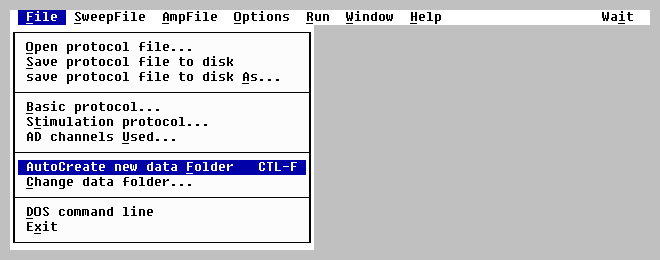
accomplished by choosing �AutoCreate new data Folder� in the File menu (Fig.
2.5.2.1). Alternatively, you can quickly
AutoCreate a new data folder �on-the-fly� (e.g. while saving ADsweeps) just
by pressing the CTL-F hotkey.
|
|
| Fig. 2.5.2.1.
The File menu showing the �AutoCreate new data Folder
CTL-F� selection.
|
When this is done, the
data folder is changed from C:\ltp22XX\010704 to the newly created data folder
C:\ltp22XX\010704B (Fig. 2.5.2.2). Up to
26 data folders (e.g. up to C:\ltp22XX\010704Z) can be AutoCreated in this
manner.
|

|
| Fig. 2.5.2.2. After
AutoCreating new data Folder using CTL-F.
|
When saving ADsweeps to
a hard disk having a FAT32 file system, the AutoCreate a new data folder is
unmeasurably fast, but when saving to a hard disk having the older FAT (16) file
system, the AutoCreation can take several seconds.
It is therefore better to use a FAT32 file system if speed is needed.
2.5.3
Change to a different data folder during acquisition
If you wish to change
to a different data folder during either acquisition or reanalysis you can
choose the �Change data folder�� selection in the File menu (Fig. 2.5.2.1) to
bring up the dialog box in Fig. 2.5.3.1.
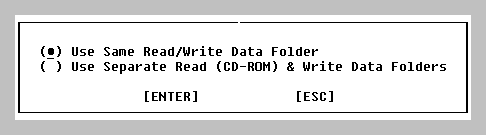 |
|
Fig. 2.5.3.1. Change Folder Dialog Box.
|
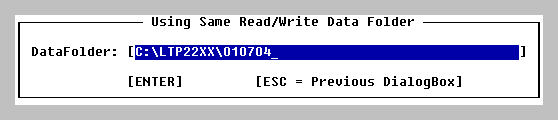
Choosing �Using Same Read/Write
Data Folder� allows you to set the Read/Write data drive and data folder by
presenting the �Using Same
Read/Write Data Folder� dialog box in Fig 2.5.3.2.
Changing this dialog box can set the Read/Write data folder say back to
the original C:\LTP22XX\010704 data folder.
|
|
| Fig. 2.5.3.2. Using Same Read/Write Data Folder dialog box |
2.6 Set the AD Gain, DataType, Sample
Interval and Other Parameters
2.6.1 Set the AD Gain, Data Type, and Sample Interval in
the Miscellaneous Window
| The Data Type determines whether the LTP program is in
extracellular or intracellular current clamp mode, or in patch clamp
voltage clamp mode. To set the program mode, type in the Data
Type: |
| |
Mode |
|
Data Type |
|
extracellular
|
|
mV |
|
intracellular current clamp
|
|
mV |
|
patch clamp voltage clamp mode
|
|
pA |
| Go to the Miscellaneous Window (shown in Fig.
3.1.6) using
PgDn until the last window is reached. Alternatively use the menu
commands (see Fig. 3.4.6A,B) |
| Window -> Miscellaneous
values |
Change the AD gain to be equal to the total amplification gain
from the electrode to the AD board connection. For example, if an
Axon Instruments AxoClamp is used in current clamp mode with an internal x10 output gain, which then goes into an
external x100 amplifier and then
into channel AD0, the AD0 Gain would be 1000. Then set the
channel AD0 DataType to "mV".
Alternatively iif an Axon Instruments AxoPatch 1D or 200B is
used in whole cell voltage clamp mode (with a CV-04 1/100
headstage where beta = 1), with an output gain of alpha = 10, and with the
output going channel AD0, the channel AD0 Gain would be the
following:
| |
|
|
|
|
Vout |
|
Beta * Alpha mV |
|
1 * 10 * 10-3 |
|
|
|
|
|
| |
|
|
|
AD0 Gain = |
----- |
= |
------------------ |
= |
-------------- |
= |
1010 |
= |
10000000000 |
|
| |
|
|
|
|
Iin |
|
pA |
|
10-12 |
|
|
|
|
(Yes that's 10 0's!) If the output gain is changed to = 20,
the AD0 Gain increases to 20000000000. Then set the channel AD0
DataType to "pA".
Finally, set the PulseSweep ADinterval to 100 usec.
2.6.2 Set the Digital-to-Analog Output
There is no conversion or gain controlling the DA output
voltage. The PulseVolt value you enter (in volts; see Fig.
3.1.2)
is the output voltage you get (in volts) from the Labmaster or
Digidata Digital-to-Analog output channel.
| For example, if you are using an Axon Instruments' Axopatch
200B, there is a 50:1 attenuation from the voltage input into the
Axopatch 200B, and the output voltage to your voltage-clamped
pipette. Therefore you need to set the Rm PulseVolt to: |
| PulseVolt 0.050v
(not PulseVolt 0.001v!) |
| in the LTP program to output 50mV (not 1mV!) from the
Labmaster or Digidata DA, and input that 50mV voltage into the
Axopatch 200B to produce a |
| 1 mV voltage-clamp command pulse. |
2.6.3 Set the PulseSweep P0 Stimulation Values in the
PulseSweep P0 Stimulation Window
| Go to the PulseSweep P0 Stimulation Window (shown in Fig.
3.1.2) by pressing PgDn or PgUp until the correct window is
reached. Alternatively use the menu commands (see Fig.
3.4.6A,B) |
| Window -> Pulse
P0 stimulation |
Set Pulse stimulation values (see Section
4.5).
2.7 Analog Filtering of the Signal Before Digitization
The waveform signal data should be filtered before being
digitized with an analog filter set to half or less of the
digitization frequency. For example, if you are acquiring an AD
sample at 100 usec intervals (e.g. at 10 KHz sampling frequency),
the analog filter should be set to at maximum 5 kHz (1/2 the
sampling frequency), or preferably to 2 kHz or lower (except if
doing an Rs exponential fit, then keep it at 5 KHz). If the
analog filter is set to higher than half the sampling frequency
(for example to 10 kHz in the above example), mysterious things
can begin to happen due to anti-aliasing such as loosing the
capacitative transients (e.g. the Rs measurement) that occur
during the voltage clamp pulse when patch clamping.
The analog filter can either be part of the biological
amplifier such as the one on the AxoPatch 1D patch-clamp
amplifier, or it can be a separate analog filter between the
amplifier and the data acquisition board input. Generally, the
best analog filters for electrophysiology are Bessel filters
because they cause no overshoots, only phase lags.
2.8 Pressing a Function Key to Stimulate and Acquire Data
| In the LTP program, protocols are initiated either by pressing
a Function Key or by using the menu commands (see Fig.
3.4.5A,B,C),
for example: |
| Run -> "Pulse stimulation (P0) F5" |
| or just press Function Key (for example): |
| F5 |
For the simplest situation of outputting one stimulus pulse
(which can be measured with an oscilloscope) and simultaneously
acquiring one sweep of data (an ADsweep), press function key F5.
Examine Train output on an oscilloscope or a chart recorder by
pressing CTL-F8.
2.9 Check that the Data Acquisition and Stimulation are
Working Correctly
The Data Acquisition / Stimulation functions should be
carefully examined by:
2.9.1 Input a known (calibrated) signal using voltage and time
calibrated stimulator and see if the correct values are
plotted on the AD sweep graphs. Be sure to measure waveform
acquisition timing by using a TRIANGULAR WAVEFORM input to make
sure no delays occur during the data acquisition/ stimulation
sweep. If there is a timing delay, the
ramp will not be smooth, but will appear to instantaneously jump
to a higher voltage and then continue (Fig. 2.9.1). Ramps can also be used to test if the slope
calculation is working correctly (see Section
4.7.3)
|

|
| Fig. 2.9.1. What a triangular waveform would look like if a
ca. 2 msec interruption occurred in the computer during the sweep (Calibration:
2V, 6ms). This bug has actually been found on some newer Dell
computers (see Rare but serious bug in
LTP222A).
|
2.9.2. Use a calibrated oscilloscope to measure the voltage
and timing of Analog or Digital output pulses that are generated
during Pulse and TrainSweeps. This will test for sample-to-sample
jitter because both Analog input and Analog/Digital output occur
at about the same time because an AD conversion always starts
when an Analog/Digital output occurs. For example, the
sample-to-sample jitter can be tested by measuring the width of an S0 pulse
during a train (Fig. 2.9.2).
|
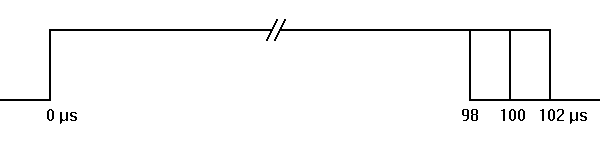
|
| Fig. 2.9.2. 4 usec jitter (+/- 2 usec) on a train of 100 usec S0
Pulses. |
2.10 Choosing the Printer
2.10.1. Hewlett-Packard LaserJet and Compatible Printers
The LTP program runs with Hewlett-Packard
LaserJet II compatible printers (II, III, 4, 5 and 6 etc.) using PCL4
graphics commands. Moderately high resolution (300 dots/inch)
plots of ADsweep and Amplitude/Slope graphs are output to the
LaserJet printer.
| To choose the printer, use the menu commands (see Fig.
3.4.4): |
| Options -> Printer/plotter |
and then from the upper group of the dialog box choose either
'None' or 'HP LaserJet II, III, 4, 5, 6' (Fig. 2.10.1).
|
|
| Fig. 2.10.1. Printer and Printer Port Dialog Box. |
If you are using a printer, connect the parallel printer port
on the printer to parallel printer port LPT1, LPT2 or LPT3 on the
computer, then from the lower group of the dialog box choose
either 'LPT1', 'LPT2' or 'LPT3'. If you are already
using a Pico board with digital output on LTP1 or LTP2, make sure
this does not conflict with printer usage.
These values determining hardware specifications are
automatically saved in the hardware.ini initialization file every
time a new value is entered.
2.10.2. Hewlett-Packard DeskJet and Compatible Printers
The LTP program does not specifically support the popular
Hewlett-Packard DeskJet and similar inkjet printers, but we have
found through trial and error that the LTP program can plot
ADsweep and Amplitude/Slope graphs to the Hewlett-Packard DeskJet
870cxi, and may well do so for other deskjet/inkjet printers.
Just choose 'HP LaserJet II, III, 4, 5, 6' from the upper
group of the Printers dialog box (see Fig. 2.10.1). You just have
to try your DeskJet/inkjet printer to find out if this will work.
Although plotting the Amplitude/Slope calculation graphs
worked fine, we did notice that only one ADsweep graph could be
plotted per page (say out of four). This problem has not been
corrected.
2.10.3. Other Printers/Plotters
The LTP222A program does not support Epson FX80 compatible
printers, Postscript language printers or Hewlett-Packard 7475
compatible plotters, and will not do so in the future.
2.11 Printing an AD Waveform Graph to the Printer
| If the computer is connected to a Hewlett Packard LaserJet II,
III, 4, 5, 6, or compatible printer, print an AD waveform to the
printer by pressing ALT-S and ALT-P to elicit the following
menu commands (Fig. 3.4.2): |
| SweepFile -> Plot
graph to printer/plotter |
| Then press Alt-S, Alt-E and Alt-P to eject the printer page if
less than four plots have been graphed: |
| SweepFile -> Eject
plot page -> Eject printer/plotter
page |
If the program has performed the above tasks, it is ready to
be set-up in more detail for your particular experiment (Chapter
4).
Go to LTP Manual - Chapter 3
Return to the LTP Manual (Table of
Contents)
Return to the LTP Home Page